

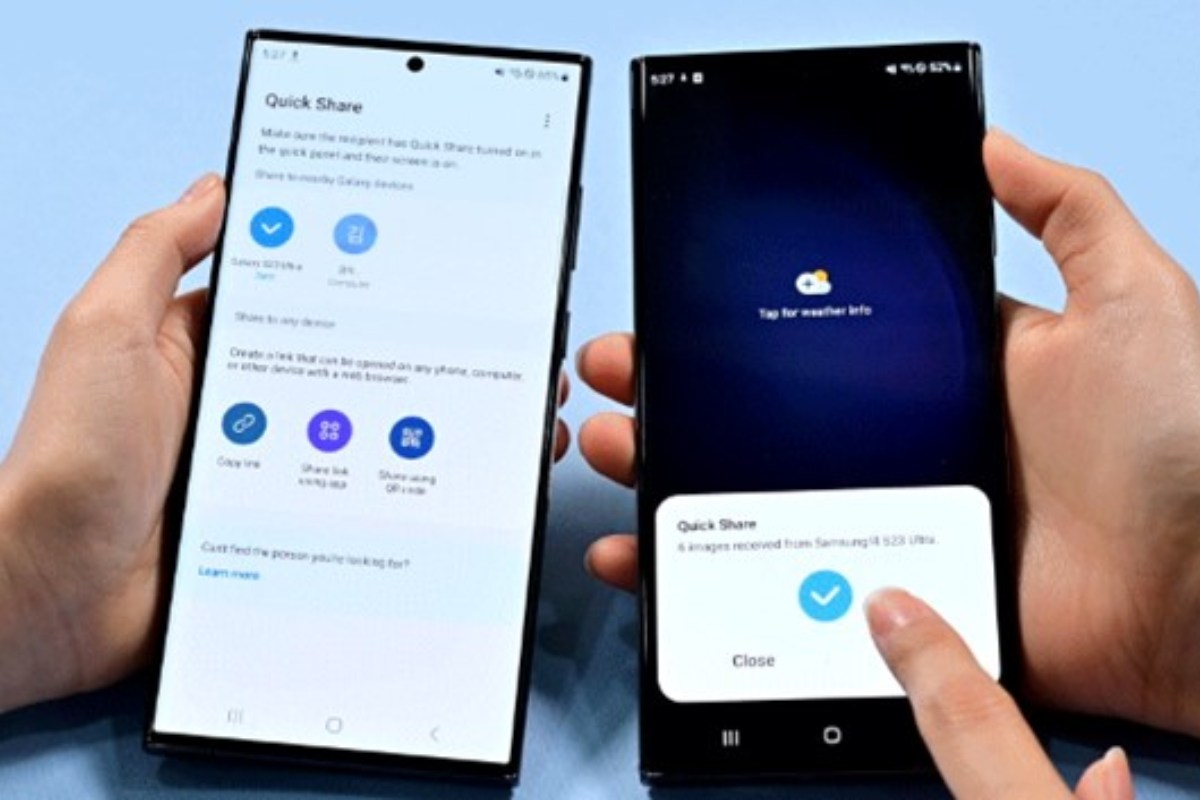
Transferring data from one phone to another can be a time-consuming process. Whether you’re upgrading to the latest smartphone or switching between Android and iPhone, one of the most important tasks is ensuring that all your notes are safely moved to your new device. You may use your notes app daily for reminders, shopping lists, or work-related ideas—and losing them is not an option.
If you’ve ever wondered, “How do I export notes from my old mobile phone?”—this detailed guide will help you. From Android to iPhone, or even across platforms, here’s everything you need to know about moving your important notes securely and efficiently.
Summary Table: How Data Transfer Impacts Note Export Efficiency
| Factor | Role in Data Transfer | Transfer Impact | Best Practice |
|---|---|---|---|
| Cloud Sync (Google/iCloud) | Enables automatic data backup | Missing sync may cause data loss | Always enable auto-sync before switching phones |
| File Format Compatibility | Affects how notes are opened | Incompatible formats cause errors | Export in universal formats like TXT, PDF, or DOCX |
| App Ecosystem | Determines accessibility on new devices | Some apps are platform-specific | Use cross-platform apps like Google Keep or Evernote |
| Account Login & Security | Ensures seamless transfer | Wrong login = missing notes | Use same account credentials on both devices |
| Backup Storage Location | SD card or cloud options | Local-only backups risk data loss | Prefer cloud-based backup for long-term safety |
| Sync Speed & Network | Affects transfer timing | Slow network = incomplete sync | Use Wi-Fi for faster, more stable transfers |
| Device OS Compatibility | Impacts note restoration success | Older OS may not support new formats | Update both devices before transferring |
| Third-Party App Support | Enables alternative backup methods | Unsupported apps can cause migration issues | Choose well-supported apps with export features |
| Security & Privacy | Protects your sensitive information | Weak encryption risks data leaks | Use encrypted apps and strong passwords |
| Manual Export Options | For selective note transfer | Tedious but reliable process | Export important notes as PDF or email attachments |
Understanding Where Notes Are Stored on Android
Before you begin exporting, it’s important to know where your notes are actually saved. Depending on your phone’s brand, Android version, and note-taking app, your notes could be stored in multiple locations.
- Older Android Phones (Version < 5.0) – Notes may be saved on the SD card.
- Modern Android Phones (Version ≥ 5.0) – Notes are often stored in internal memory or synced to cloud services like Google Keep or Samsung Cloud.
If your device has multiple note apps (for example, Samsung Notes and Google Keep), you’ll need to export separately from each app.
How to Locate Your Notes on Android
To find your notes quickly:
- Open Google Keep on your Android device.
- Tap the Search icon on the top bar.
- Enter keywords or labels from your notes.
- Tap the note you want to open or manage.
You can also organize your notes with labels like Work, Personal, or Reminders to make finding them easier before transfer.
Transferring Notes from Android to Android
The process for transferring notes depends on the note-taking app you use. Here are the common scenarios:
1. Transferring Notes Using Google Keep
Google Keep is one of the easiest ways to sync notes between Android devices. It automatically backs up your notes to your Google account, allowing them to appear instantly on your new phone.
Steps to Transfer:
- On your old Android phone, open Google Keep.
- Tap on the Menu > Settings > Sync.
- Make sure Sync is turned ON.
- Log in to the same Google account on your new Android phone.
- Install Google Keep on the new phone.
- Open the app — your notes will appear automatically.
If your notes don’t sync, go to Settings > Accounts > Google > Sync > Keep Notes and enable it manually.
2. Moving Samsung Notes to a New Phone
Samsung devices come with a built-in Samsung Notes app that allows exporting notes directly.
Steps to Move Samsung Notes:
- Open Samsung Notes on your old device.
- Long-tap the note you want to move.
- Select Save as file.
- Choose a format — PDF, Microsoft Word (DOCX), or PowerPoint (PPTX).
- Save the file to a location (phone storage or cloud).
- Transfer the file via Bluetooth, email, USB cable, or Samsung Cloud.
- On your new phone, open Samsung Notes, then import the saved file.
✅ Tip: If you’re signed in with the same Samsung account on both phones and sync is turned on, your notes will automatically appear without manual transfer.
Google Keep Notes Sync Troubleshooting
Sometimes, your Google Keep notes may not appear on your new phone. Try these fixes:
- Go to Settings > Accounts > Google > Sync.
- Tap your account name and make sure Keep Notes sync is toggled ON.
- Clear cache of Google Keep (Settings > Apps > Keep > Storage > Clear Cache).
- Reopen the app — the notes should now appear.
Exporting Android Notes to a Computer
If you want to save a backup of your notes on your computer:
- Install Samsung Notes or Google Keep (Web) on your PC.
- Sign in using the same account used on your phone.
- Sync your data and access your notes directly on your computer.
- You can also copy-paste text, download PDFs, or email yourself copies for offline storage.
For Samsung users, ensure Samsung Notes Sync is enabled on both the phone and PC via your Samsung account.
Transferring Notes on iOS (iPhone to iPhone)
When switching between iPhones, Apple makes note transfer simple through iCloud synchronization.
Steps to Transfer iPhone Notes:
- On your old iPhone, open Settings > [Your Name] > iCloud.
- Turn ON the Notes toggle.
- Wait for the sync to complete.
- On your new iPhone, sign in with the same Apple ID.
- Turn ON iCloud Notes again.
- Open the Notes app — all your old notes will automatically appear.
Make sure your notes are stored under the iCloud label and not “On My iPhone.” You can easily move them to iCloud before switching phones.
How to Move Notes from iPhone to Android
Switching from iPhone to Android? Here’s how to do it safely:
Option 1: Using Google Keep
- Install Google Keep on your iPhone.
- Open the Apple Notes app and select a note.
- Tap Share > Google Keep.
- Repeat for each important note.
- Install Google Keep on your Android phone and sign in with the same Google account.
Option 2: Using iCloud and Browser
- On your iPhone, enable iCloud Notes sync.
- Visit iCloud.com/notes on your computer or Android browser.
- Copy your notes and paste them into Google Keep or another app.
Option 3: Using Gmail Sync
- Go to Settings > Notes > Accounts > Gmail.
- Enable Notes Sync.
- Notes will appear under the Notes label in your Gmail account.
- You can view and copy them from any device.
What Happens When Google Backs Up Android Notes?
While Google automatically backs up many app settings and contacts, it doesn’t back up Samsung Notes. Samsung Notes data can only be saved to Samsung Cloud, OneDrive, or exported manually.
For non-Samsung Android phones, apps like Google Keep, Evernote, and Microsoft OneNote store data in the cloud — meaning your notes are synced across devices instantly.
Recommended Note-Taking Apps for Cross-Platform Use
To avoid losing notes when changing devices in the future, consider using cross-platform note apps:
| App Name | Platforms Supported | Storage Type | Price | Special Features |
|---|---|---|---|---|
| Google Keep | Android, iOS, Web | Cloud | Free | Real-time sync, label-based organization |
| Evernote | Android, iOS, Windows, macOS | Cloud | Free / Premium | Rich text editor, voice notes, web clipper |
| Microsoft OneNote | Android, iOS, Windows, Web | Cloud | Free | Integration with Microsoft Office suite |
| Simplenote | Android, iOS, macOS, Linux | Cloud | Free | Lightweight, fast sync, markdown support |
| Zoho Notebook | Android, iOS, Web | Cloud | Free | Custom covers, audio recording, sketch support |
Pricing & Backup Plan Comparison
| Service Name | Monthly Plan | Storage Limit | Backup Type | Ideal For |
|---|---|---|---|---|
| Google Keep | Free | Unlimited | Cloud-based sync | Everyday users and Android owners |
| Evernote Premium | ₹250/month | 10 GB/month | Encrypted cloud | Professionals and business users |
| Microsoft OneNote | Free with Microsoft account | 5 GB (OneDrive) | Cloud + Offline Sync | Students and office users |
| Samsung Cloud | Free (with Samsung ID) | 15 GB | Device backup | Samsung ecosystem users |
| iCloud Notes | ₹75/month (50GB plan) | 5 GB free | Cloud-based sync | iPhone and Mac users |
Final Verdict
Transferring notes from your old phone to your new one doesn’t have to be stressful. Whether you’re on Android or iPhone, the key lies in using cloud synchronization and cross-platform note-taking apps.
- For Android users, Google Keep and Samsung Notes offer seamless transfer options.
- For iPhone users, iCloud Notes makes syncing easy across Apple devices.
- For switching between Android and iPhone, apps like Google Keep, Evernote, and OneNote bridge the gap effectively.
Pro Tip: To prevent future data loss, always keep your notes synced online instead of storing them only on your device. Cross-platform tools make switching phones effortless.
So next time you upgrade your smartphone, you can take all your precious notes with you — securely, conveniently, and without a single retype.
